TL;DR / KEY TAKEAWAYS
- Core Service: Access OpenAI and Anthropic models at up to 50% off, all behind one key and one address.
- Usage: console for browser chat or an API to connect any third-party app.
- Integration: Set `Base URL: https://fbm.cloud/v1` and paste your generated API key.
What [FBM] Cloud is
Overview: The console, API keys and connecting your apps
[FBM] Cloud gives you OpenAI and Anthropic models behind one key and one address. There are two ways to work with it, and they share the same balance: the web console at fbm.cloud, where you can chat with a model straight away and manage keys, and an OpenAI-compatible API that any app can point to.
Part 1 of this guide walks through the console. Part 2 shows how to plug the API into an app you already use. If you only need a chat window, Part 1 is enough.
The Console at a Glance
- Playground. Chat with any available model right in the browser.
- Chat. Links to desktop clients that work with the API.
- Overview. Balance, spend over the last 24 hours, request count.
- Dashboard. Detailed charts by model, key and day.
- API Keys. Create, disable and delete keys.
- Usage Logs. Every request with its model, tokens and cost.
- Task Logs. Long-running jobs such as image generation.
- Wallet. Top up and review the payment history.
- Profile. Account details and password.
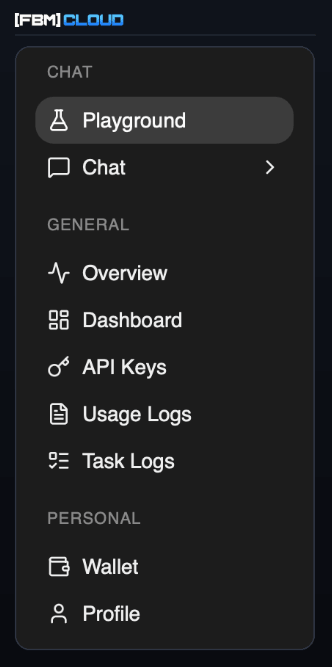
The top bar adds Model Square — the full catalogue with per-model pricing — and Docs. Search is bound to Cmd+K.
The Whole Route
- Sign in and top up: Wallet holds one balance, shared by the console and the API.
- Try a model in the Playground: A chat window that needs no setup at all.
- Create an API key: One key per app, revocable at any time.
- Point your app at [FBM] Cloud: Paste the key and the base URL into its settings.
- Add a model ID and test it: Our identifiers are not in any app’s built-in list.
Part 1: The console
Chat, balance and keys at fbm.cloud
- Check your balance
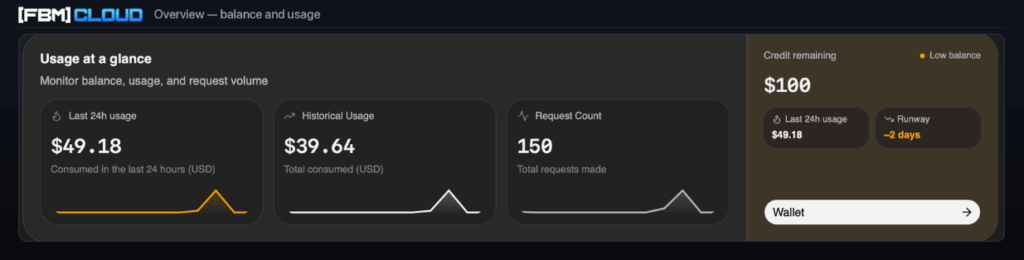
Overview is the landing screen. It shows what is left on the account, how much went out over the last 24 hours and how many requests were made. Runway estimates how long the balance lasts at the current rate, and the Wallet button leads to top-up.
- Chat in the Playground
Playground is a chat window that needs no setup: type a prompt and send it. The model is chosen in the picker at the bottom right of the composer, next to the group – leave the group at default unless you were given another one.
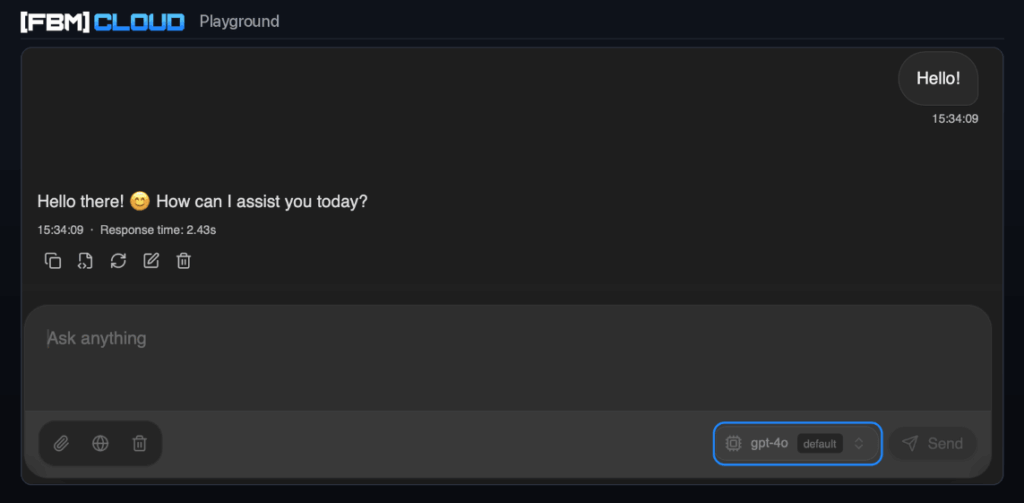
Under each reply the console prints the response time and buttons to copy, regenerate, edit or delete the message. Everything you send here is billed the same way as an API request and lands in Usage Logs.
- Create an API key
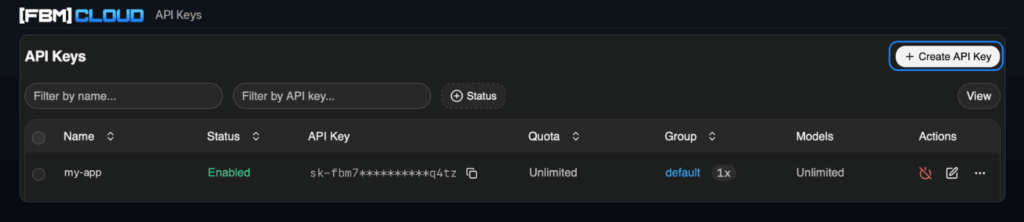
To use [FBM] Cloud from your own app you need a key. Open API Keys and press + Create API Key.
The dialog has a handful of fields, and the defaults suit a first key:
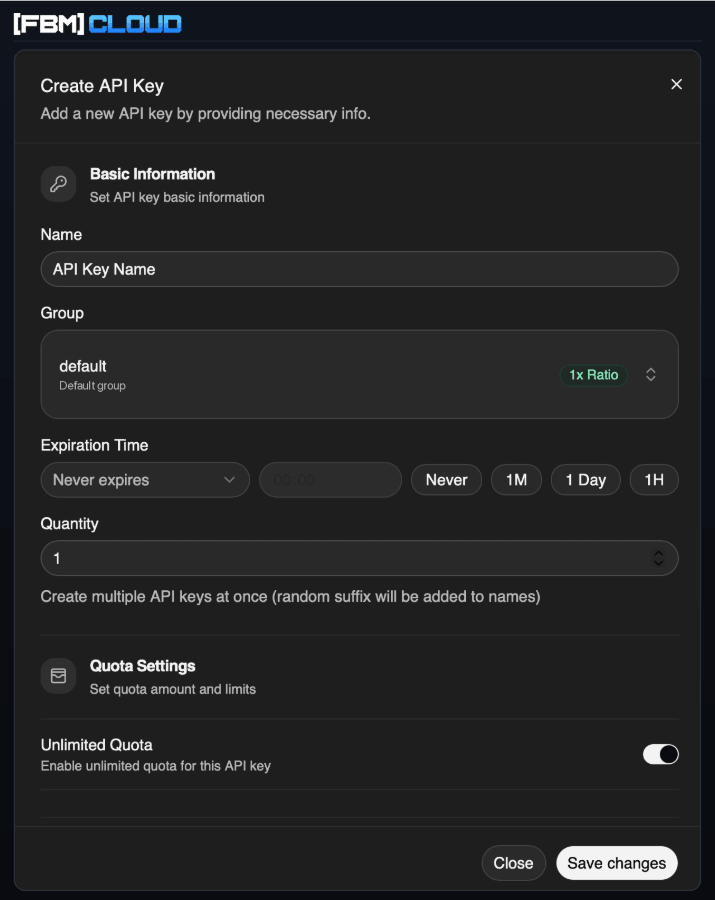
- Name. Which app this key belongs to.
- Group. Pricing group; default is the 1x rate.
- Expiration. Never, or a fixed date for temporary access.
- Quantity. Create several keys at once.
- Unlimited Quota. Switch it off to cap this key’s spend.
After Save changes the key shows up in the list, masked. Copy it with the icon next to it — that value is what Part 2 asks for. A key can be disabled or deleted at any time from the Actions column, and each one is metered separately in Usage Logs.
Part 2: Connecting an app
The OpenAI-compatible API in any client
Any app that lets you point the OpenAI provider at a custom server can talk to [FBM] Cloud — code editors and AI assistants, desktop chat clients, command-line tools or your own scripts. Nothing has to be installed: you supply three values and the app does the restо.
Field names vary slightly from app to app, but they always mean the same thing: an API key, a base URL and a model ID. The screenshots below come from one such client — use them as a reference for what to look for in yours.
Before You Start
| API key | sk-YOUR_KEY |
| Base URL | https://fbm.cloud/v1 |
| Model ID | e.g. gpt-5.5 |
The key is the one you copied in Part 1. It is issued to you personally — treat it like a password, do not commit it to a repository and do not share.
Under the Hood
If the app has no settings screen at all — a script, a CLI tool, a backend service — the same three values go straight into the request:
curl https://fbm.cloud/v1/chat/completions \
-H «Authorization: Bearer sk-YOUR_KEY» \
-H «Content-Type: application/json» \
-d ‘{«model»: «gpt-5.5», «messages»: [{«role»: «user», «content»: «ping»}]}’
- Find the model settings
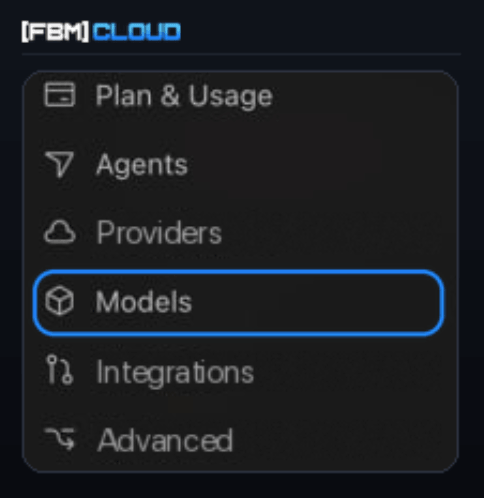
Open the app’s settings and look for the section that configures AI models or providers. Depending on the app it is called Models, Providers, AI or API, and it usually sits alongside the rest of the preferences.
- Enter the API key and Base URL
Find the block that holds provider credentials and fill in two fields:
- Paste your key into the OpenAI API key field and save it. Most apps then hide the value and show something like Secret saved.
- Enable the base URL override and enter https://fbm.cloud/v1. Depending on the app this field is called Base URL, API endpoint или Custom host.
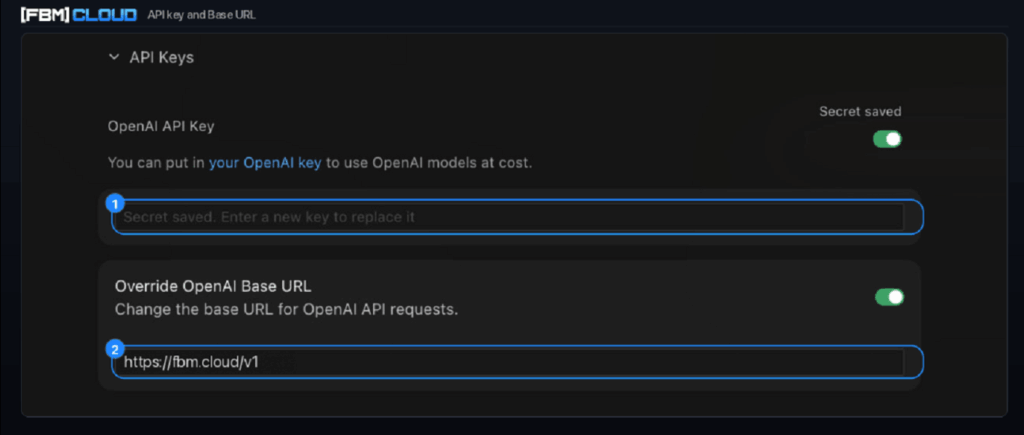
Use the OpenAI fields for every model. It does not matter whether you plan to run GPT or Claude: all [FBM] Cloud models are served through the same OpenAI-compatible endpoint, so any Anthropic-specific fields stay empty. Make sure the URL ends with /v1 and has no trailing slash.
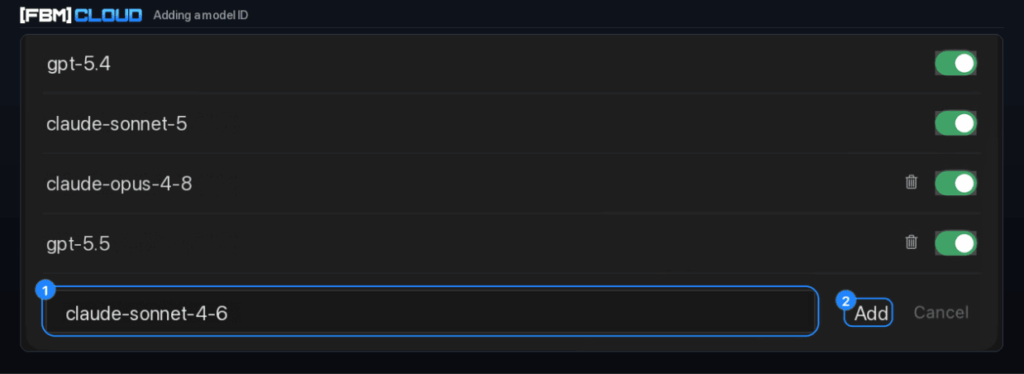
- Add a model ID
Our models are not part of any app’s built-in list, so add them by hand. Type the ID exactly as printed in the reference — no spaces, no changes in case — then confirm and make sure the model is switched on. Add as many as you need: they all run over the same key and base URL.
- Select the model and test it
Pick one of the models you just added. In chat apps this is the selector next to the input field; in API clients it is the model parameter of the request.
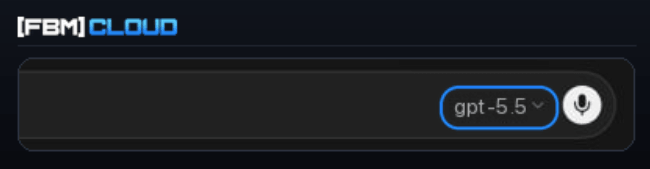
Send any short prompt. A reply means the integration is live and every request from the app now goes through [FBM] Cloud, billed against the same balance you saw in Part 1.

Available models
These are the values your app expects in the custom-model field, the ones the Playground picker lists, and the ones you would pass as model when calling the API directly. Type an identifier exactly as printed, or copy it from Model Square in the console.
| OpenAI | Anthropic | Reasoning | Image | Embeddings |
| gpt-4o | claude-fable-5 | o1 | gpt-image-1 | text-embedding-3-large |
| gpt-4o-mini | claude-haiku-4-5-20251001 | o1-mini | gpt-image-1-mini | text-embedding-3-small |
| gpt-5 | claude-opus-4-5-20251101 | o3 | gpt-image-2 | |
| gpt-5-chat-latest | claude-opus-4-6 | o3-mini | ||
| gpt-5-mini | claude-opus-4-7 | o4-mini | ||
| gpt-5-pro | claude-opus-4-8 | |||
| gpt-5.1 | claude-sonnet-4-5-20250929 | |||
| gpt-5.2 | claude-sonnet-4-6 | |||
| gpt-5.3-chat-latest | claude-sonnet-5 | |||
| gpt-5.4 | ||||
| gpt-5.4-mini | ||||
| gpt-5.5 |
If something goes wrong
| Ошибка | Подробности |
| 401 · Invalid API key | Key copied partially or saved with a stray space. Paste it again. |
| 404 · Model not found | The ID does not match the list above. Check it character by character. |
| Connection error / timeout | Base URL must be exactly https://fbm.cloud/v1, with no trailing slash. |
| Model not in the list | Added but left disabled. Switch its toggle on in the settings. |
| Old provider still used | The URL override is saved but not enabled. Restart the app. |
| Insufficient balance | Top up from Wallet, or check Runway on the Overview screen. |
Still stuck? Send us the exact error text together with the model ID you used, and we will get back to you.
[FBM] Cloud — supported apps
where the API fits, and what to type in each app
[FBM] Cloud speaks the OpenAI protocol. That is the dialect the official OpenAI libraries use, and by now almost every AI app understands it – so the apps you already have can run our models with no plugin, extension or bridge. You change the server address they call and paste in a key.
This document lists where that works, app by app, with the exact screen the setting lives on. It is a companion to the getting-started guide: that one walks the connection through on a single client, this one tells you where the same three fields hide everywhere else..
| The three Values, everywhere | |
| API key | sk-YOUR_KEY |
| Base URL | https://fbm.cloud/v1 |
| Model ID | e.g. gpt-5.5 |
No app asks for more than this. Field names drift: Base URL, API host, endpoint, proxy address and server URL are all the same box, and the key field is always the OpenAI one – leave any Anthropic-specific fields empty, Claude models come through the same endpoint.
Mind the /v1: Some apps want the whole base — https://fbm.cloud/v1 — and others want the host alone, https://fbm.cloud, because they append the path themselves. The tables say which is which. A 404 on the first connection test is almost always this: try the other form before you change anything else.
Not in the Tables?
Open the app’s settings and look for any one of these. One is enough:
- A provider called OpenAI-compatible, Custom OpenAI or Custom provider.
- A Base URL, API host, endpoint or proxy address field next to the OpenAI key.
- An OPENAI_BASE_URL or OPENAI_API_BASE variable mentioned in its docs.
- A config file whose provider block takes baseUrl or apiBase.
What rules an app out is a Sign in with OpenAI button and no key field: those route through the vendor and cannot be sent elsewhere.
Part 1: Ready-made apps
checked paths, grouped by what you would use them for
Everything below has been verified against the app’s own documentation. Where an app cannot fetch our model list on its own, the note says so — in that case type the identifiers from the getting-started guide, or copy them out of Model Square in the console.
For chatting, on your own machine
chat clients
The closest thing to the familiar chat window, except the models and the bill are yours. Any of these will show GPT and Claude side by side in one picker.
| App | Platforms | Where the setting lives |
| Cherry Studio | macOS · Windows · Linux | Settings → Model Services → + Add, provider type OpenAI. Enter the host https://fbm.cloud – it appends the rest itself. Add model IDs by hand. |
| Chatbox | macOS · Windows · Linux · iOS · Android | Settings → Model Provider → Add, type OpenAI API compatible. API Host https://fbm.cloud, leave API Path as it is. |
| Jan | macOS · Windows · Linux | Settings → Model Providers → +, then Base URL https://fbm.cloud/v1. The built-in providers cannot be re-pointed, so add your own. |
| ChatWise | macOS · Windows · Linux | Settings → Providers → + → OpenAI Compatible, Base URL with /v1, then Fetch Models. |
| BoltAI | macOS | Settings → Models → + → OpenAI-compatible Server. This one wants the full https://fbm.cloud/v1/chat/completions, not the base |
| Msty | macOS · Windows · Linux | Settings → Remote Model Providers → Add New Provider, type OpenAI Compatible, endpoint with /v1. |
For a team on one balance
self-hosted and shared
Run one of these on a server and your colleagues get a chat interface without ever seeing the key. One [FBM] Cloud key covers the whole installation; issue a separate key per deployment so you can read the two apart in Usage Logs.
| App | Platforms | Where the setting lives |
| Open WebUI | Docker · self-hosted | Admin Settings → Connections → OpenAI → + Add Connection, or the OPENAI_API_BASE_URL variable. If the model list comes up empty, list the IDs under Model IDs. |
| LibreChat | Docker · self-hosted | In librechat.yaml, an entry under endpoints.custom with baseURL and apiKey. Mount the file into the container to make it take effect. |
| AnythingLLM | desktop · Docker | Settings → AI Providers → LLM → Generic OpenAI. Needs /v1, and the context window and max tokens have to be filled in manually. |
| SillyTavern | self-hosted · browser | API → Chat Completion, source Custom (OpenAI-compatible), endpoint with /v1. Do not append /chat/completions – that returns a 400. |
| TypingMind | browser · self-hosted | Models → Add Custom Model: endpoint, model ID, and the key as a custom header Authorization: Bearer sk-…. |
For writing code
editors and terminals
Assistants that live inside the editor and read your project. These are the heaviest consumers on the list – an agent run can spend more in one task than a day of chatting, so Usage Logs is worth a look after the first few.
| App | Platforms | Where the setting lives |
| Cline | VS Code · Cursor · Windsurf | Gear icon in the Cline panel → API Provider: OpenAI Compatible → Base URL, key, model ID. Also fill in Model Configuration — context window and tool use are not guessed for custom endpoints. |
| Roo Code | VS Code and its forks | Gear icon → Providers → OpenAI Compatible → Base URL, key, model ID typed in by hand. |
| Continue | VS Code · JetBrains | In config.yaml: provider: openai with apiBase: https://fbm.cloud/v1. For GPT-5 and o-series add useResponsesApi: false. |
| Zed | macOS · Linux · Windows | Settings → AI → LLM Providers → Add Provider, or openai_compatible in settings.json. The key goes through the UI, never into the file. List the models under available_models. |
| Aider | terminal, any OS | OPENAI_API_BASE=https://fbm.cloud/v1 plus OPENAI_API_KEY. Prefix the model with openai/, e.g. openai/gpt-5.5, or the request will not be routed to us. |
| JetBrains AI Assistant | all JetBrains IDEs | Settings → Tools → AI Assistant → Models & API keys → Third-party AI providers → OpenAI-compatible, then Test Connection. |
| GitHub Copilot | VS Code 1.122 и новее | Chat: Manage Language Models → Add Models → Custom Endpoint. Works in chat, not in inline completions; on Business plans an admin has to allow BYOK. |
| OpenCode | terminal, any OS | In opencode.json, a provider on @ai-sdk/openai-compatible with options.baseURL and the models listed out. |
For pipelines and bots
automation
In these the model is one node in a chain. Give each scenario its own key: when something loops and burns through the balance, that is how you find out which one.
| App | Platforms | Where the setting lives |
| n8n | cloud · self-hosted | Base URL sits in the OpenAI credential itself (since 1.73.0), so every node that uses it follows. On older nodes the field is in the node options. |
| Dify | cloud · self-hosted | Settings → Model Providers, install the OpenAI-API-compatible plugin, then Add Model with the endpoint ending in /v1. |
| Flowise | cloud · self-hosted | On the ChatOpenAI node: Additional Parameters → Base Path. The model dropdown only lists OpenAI’s own names, but the field accepts anything typed in. |
| Langflow | cloud · self-hosted · desktop | Settings → Model Providers → OpenAI Compatible: Base URL and key. Models are read from the endpoint. One endpoint per user. |
For everyday tools
notes and productivity
| App | Platforms | Where the setting lives |
| Obsidian, плагин Copilot | desktop · mobile | Settings → Copilot → Model → Add Model, provider 3rd party (openai-format), then Verify Connection. The URL is set per model, not once. |
| Obsidian, Smart Connections | desktop · mobile | Smart Chat → model → Custom API adapter, base URL with /v1. Chat only: its embeddings do not take a custom endpoint. |
| Raycast | macOS | Settings → AI → Experiments → Custom Providers, then edit ~/.config/raycast/ai/providers.yaml with base_url and the models. The ordinary AI → API Keys screen will not do — it takes vendor keys only. |
| Logseq | desktop · mobile | Through a plugin: logseq-copilot has API Endpoint and API Key; logseq-plugin-gpt3-openai has chatCompletionEndpoint. |
Part 2: Special cases
well-known clients that need a word of warning
These come up often enough to be worth spelling out. None of them is a plain base-URL field, so treat the notes as part of the setup rather than trivia.
| App | Setting details |
| Cursor | Settings → Models → Override OpenAI Base URL does work, but the override applies to every model at once, and Tab completion and inline edits always go through Cursor’s own servers regardless. If the field will not stick, re-enter it and restart the app. |
| Claude Code | Expects Anthropic’s own /v1/messages protocol, not the OpenAI one, so the base URL from this document will not do. Ask support whether your key has the Anthropic-format endpoint enabled. |
| Codex CLI | Configured in ~/.codex/config.toml, but recent versions speak only the Responses API. Check with support before relying on it. |
| Windsurf | Has no custom base URL of its own. Install Cline or Roo Code from its marketplace and set the endpoint there instead. |
Part 3: Your own code
when there is no settings screen to fill in
A script, a backend, a bot: the same two values go into the client you already use. Point the official OpenAI library at us and nothing else in your code has to change.
from openai import OpenAI
client = OpenAI(base_url=»https://fbm.cloud/v1″, api_key=»sk-YOUR_KEY»)
reply = client.chat.completions.create(
model=»gpt-5.5″,
messages=[{«role»: «user», «content»: «ping»}],
)
print(reply.choices[0].message.content)
Read the key from the environment rather than pasting it into the file — that is the one habit worth keeping, because a key committed to a repository is a key you have to revoke.
| openai-python | OpenAI(base_url=…, api_key=…), or the OPENAI_BASE_URL variable. |
| openai-node | new OpenAI({ baseURL: …, apiKey }) — note the camelCase. |
| LangChain | ChatOpenAI(base_url=…, api_key=…) ; also reads OPENAI_BASE_URL. |
| LlamaIndex | api_base on the constructor; prefer OpenAILike for our model IDs. |
| Vercel AI SDK | createOpenAICompatible({ baseURL, apiKey }) from @ai-sdk/openai-compatible. |
Anything not listed will work too, as long as it lets you set the base URL. If it only takes a key, it is hardwired to the vendor.
What will not work
Not every app can be re-pointed, and a few of them look like they should be. To save you the search:
| ChatGPT desktop and mobile apps | No endpoint field at all — they only talk to OpenAI’s own servers. |
| Claude Desktop | Ignores the base-URL variable and goes straight to Anthropic. |
| Perplexity, Notion AI, Gemini app | The model is part of the product; there is nothing to re-point. |
| LM Studio | Serves an OpenAI-compatible API of its own but will not call a remote one. |
| Enchanted (iOS) | Speaks the Ollama protocol only. |
| Zapier and Make.com OpenAI actions | The built-in actions take a key but no URL. Use a plain HTTP request instead: POST to https://fbm.cloud/v1/chat/completions with an Authorization: Bearer sk-… header. |
Not sure about a particular app? Send us its name and we will tell you whether it can be connected — and where the field is if it can.